
1Before you start
Your website is www.kintubmookata.com. It runs on Wix. You look after your menu, your page text and your photos from the Wix dashboard, the control panel behind your website. We look after the design.
You can do yourself
- Change a dish's name, price or photo
- Add a new dish
- Change the text and photos on your pages
- Update your opening hours, address and contact details
- See how many people visit your website
We do for you
- Page design, layout and the phone version
- New pages, menus and buttons
- Google search settings
- Your domain and team access
The pictures in this guide come from your own Wix dashboard and Google. Red numbers point to the button each step talks about. Tap any picture to make it bigger.
2Log in to your dashboard
- Open the invitation email from Wix and click Accept. Always log in with this same email address (for example abc@gmail.com).
- Go to www.wix.com and click Log In.
- Open Kin Tub Mookata. You are now on your dashboard.
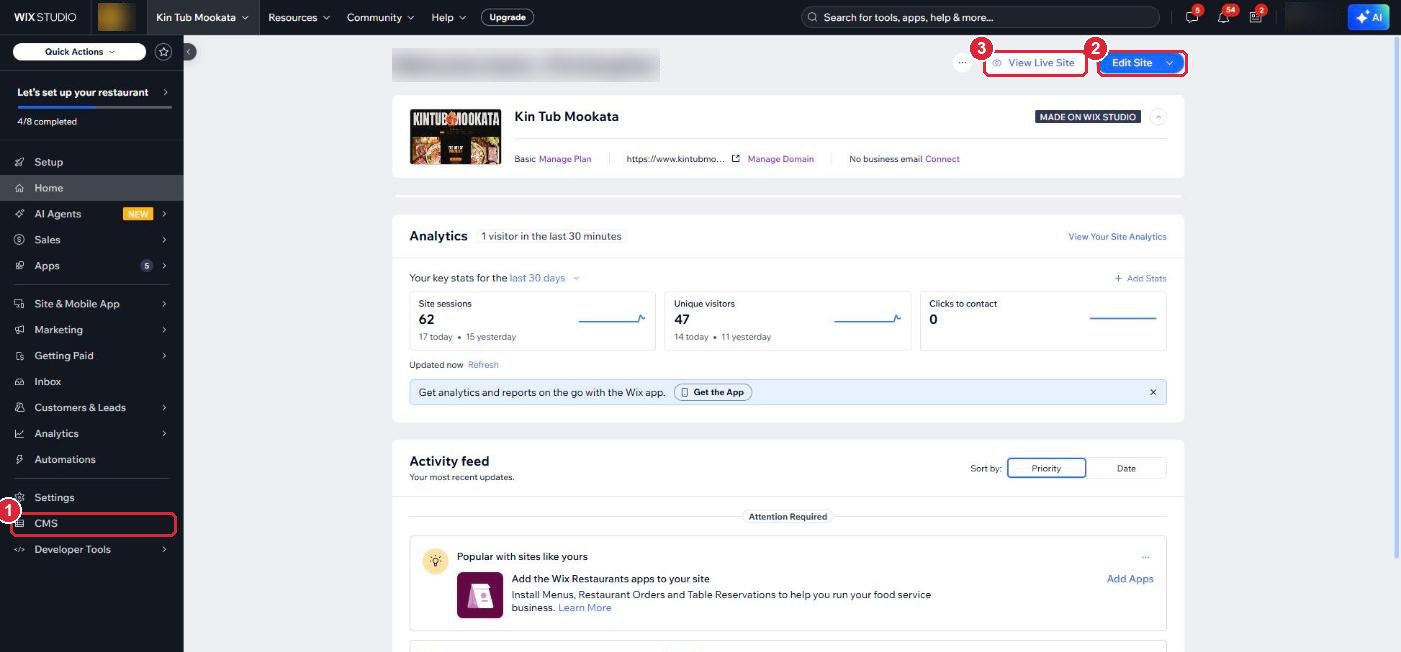
- 1CMS: your menu dishes.
- 2Edit Site: the small arrow beside it opens Content Mode, where you change page text and photos (see section 11).
- 3View Live Site: see your website the way your customers see it.
3Where your bookings arrive
Your website has no booking form. Guests book by WhatsApp, by phone or by email, so there is nothing to check inside Wix.
- WhatsApp: +65 9787 9465. The "Book a Table" buttons open a WhatsApp chat with this number.
- Email: admin@kintubmookata.com
- Phone and address: shown in your footer (see section 13).
4Find your dishes
All 65 dishes on your Menu page live in one list called Menu: 12 Mookata Sets, 15 Meats, 9 Seafood, 16 Surimi and Sides, and 13 Vegetables.
- On the left, click CMS.
- Click Menu.
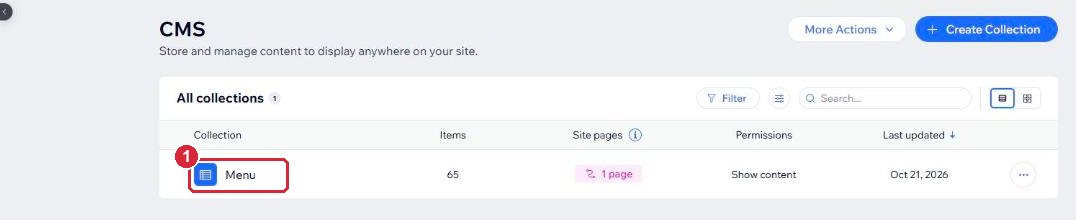
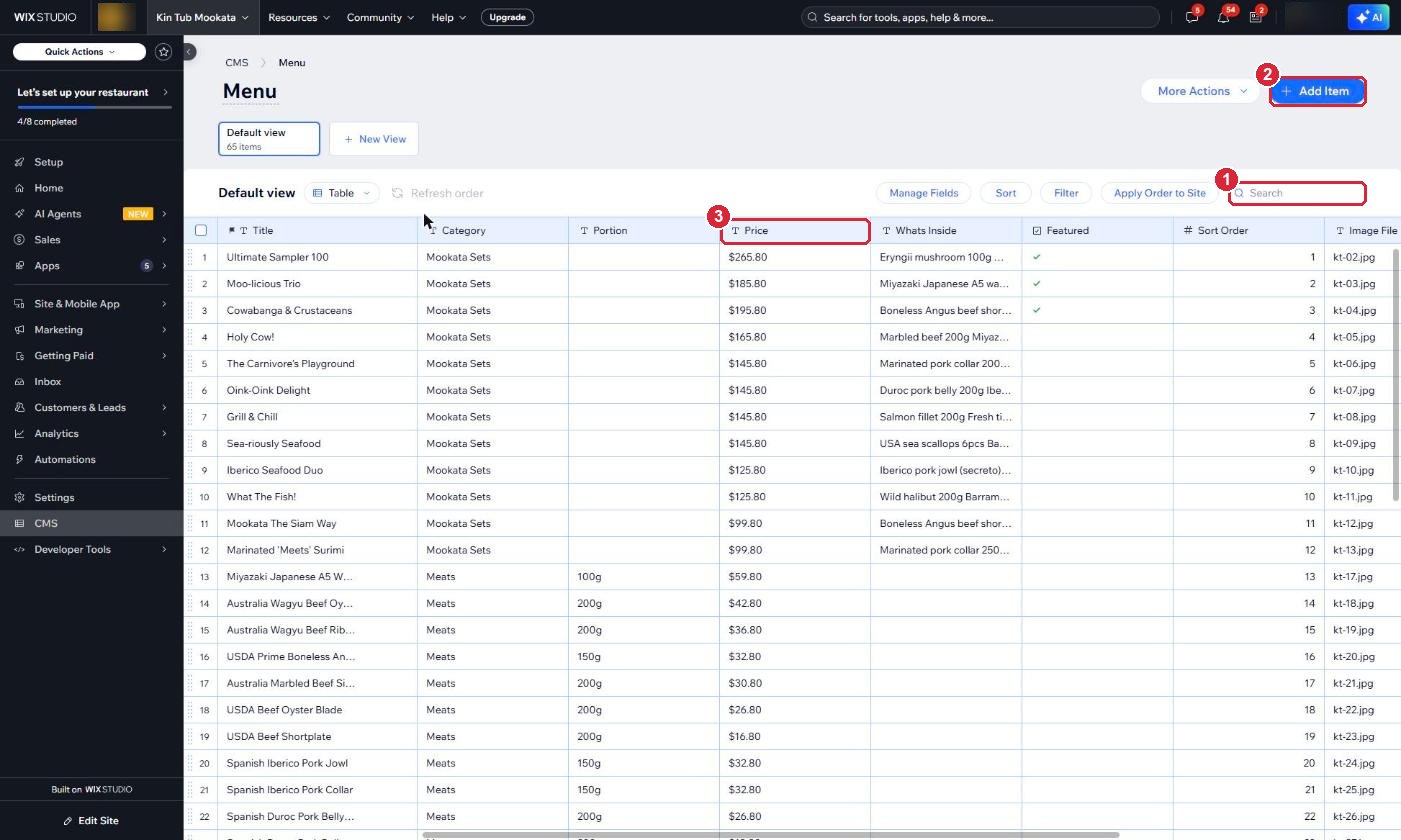
- 1Search: type a dish name to find it quickly.
- 2Add Item: add a new dish (see section 7).
- 3Price: the price shown on your website, with the $ sign.
5Edit a dish
- Point at the dish's name and click Open.
- Change what you need, for example the name or the price.
- Click Save. Your website updates within a few minutes.

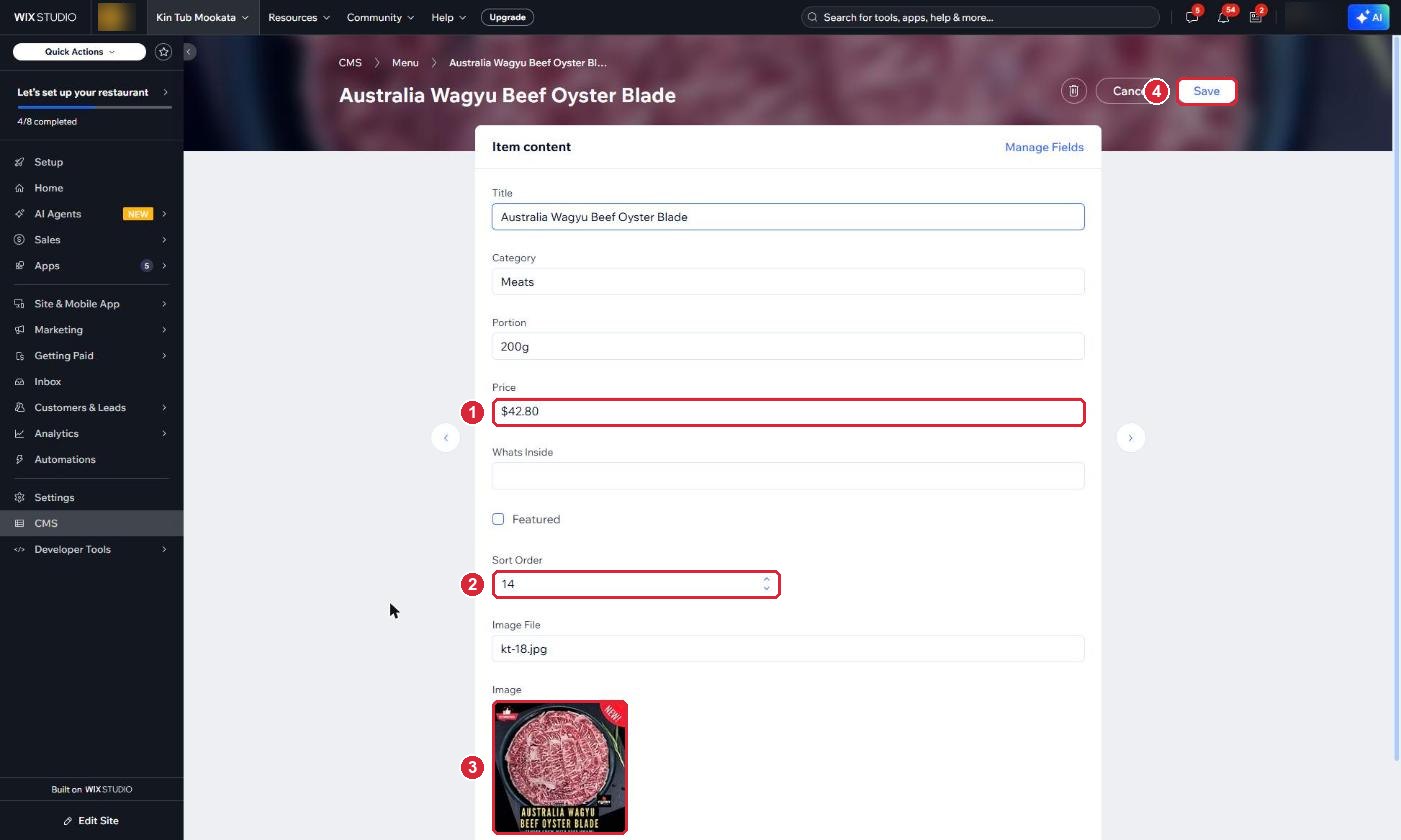
- 1Price: type it the same way as the others, for example $42.80.
- 2Sort Order: the position of the dish on the Menu page. A smaller number shows first.
- 3Image: the dish photo (see section 6).
- 4Save: always click it, or your change is lost.
6Change a dish photo
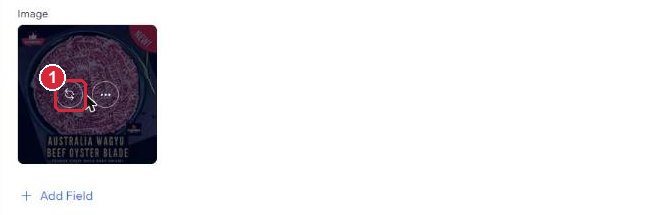
- Open the dish (steps in section 5) and scroll down to Image.
- Point at the photo. Two round buttons appear. Click the left one, with two arrows.
- Choose a new photo from your computer.
- Click Save.
7Add a new dish
- In the Menu list, click Add Item at the top right.
- Fill in Title, Category, Portion and Price. Use one of the five category words from section 5.
- Set Sort Order. To put the dish at the end of its category, type a number higher than the others in that category.
- Click the + under Image and choose the photo.
- Click Save.
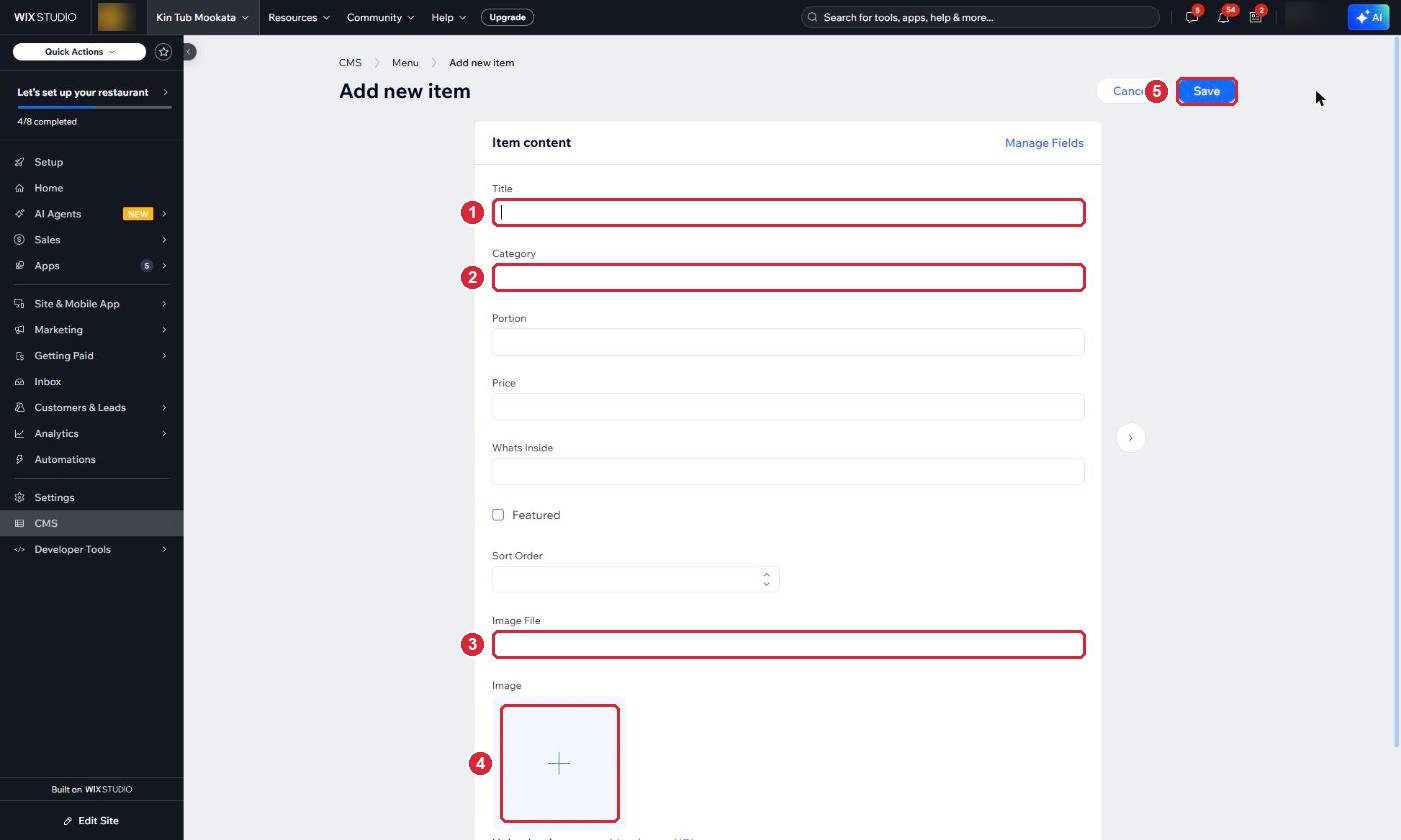
- 1Title: the dish name.
- 2Category: exactly one of the five words.
- 3Image File: leave this empty.
- 4Image: click the + to add the photo.
- 5Save: click it to publish the dish.
8Remove a dish
There is no hide switch. To take a dish off your Menu page, delete it.
- Open the dish.
- Click the bin icon at the top, beside Cancel.
- Confirm.
9Your website visits (Google Analytics)
Google Analytics counts the people who visit your website. Look once a week or once a month. It started counting on 21 October 2026, so the numbers build up from then.
- Go to analytics.google.com and log in with your Google account. We hand over Analytics and Search Console to you at the walkthrough.
- Open Kin Tub Mookata. The Home page shows your numbers.
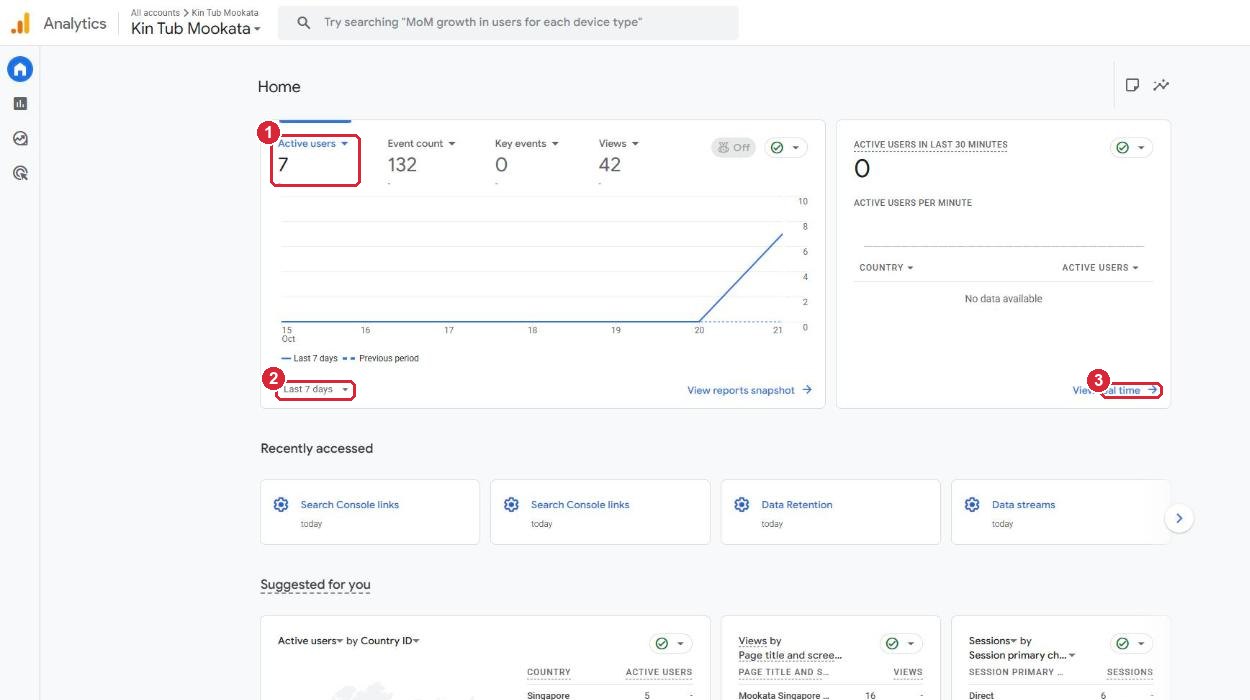
- 1Active users: the number of different people who visited.
- 2Last 7 days: click to look at a different period.
- 3View real time: who is on your website right now.
Which pages do people read?
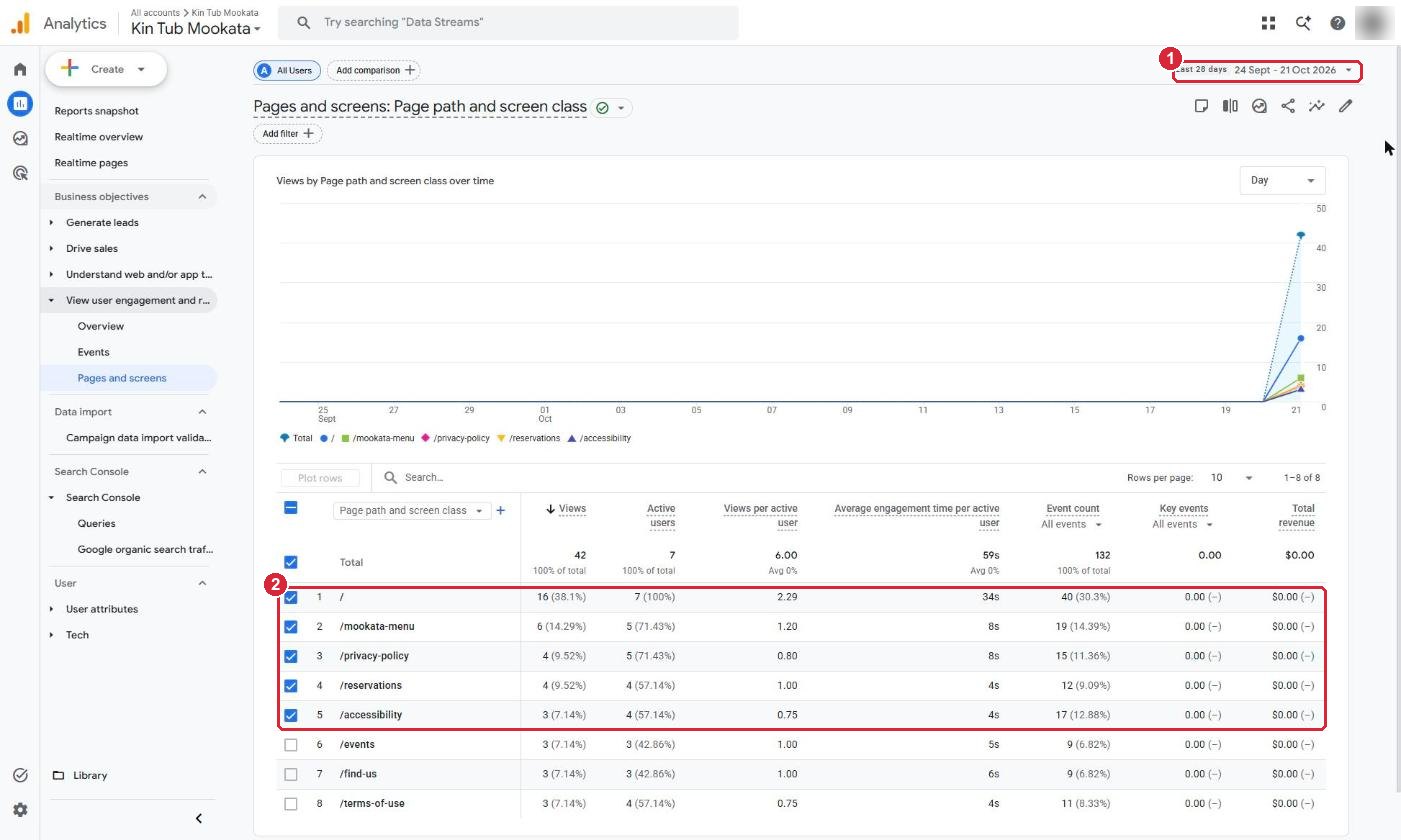
- On the left, click Reports, then View user engagement and retention, then Pages and screens.
Where do visitors come from?
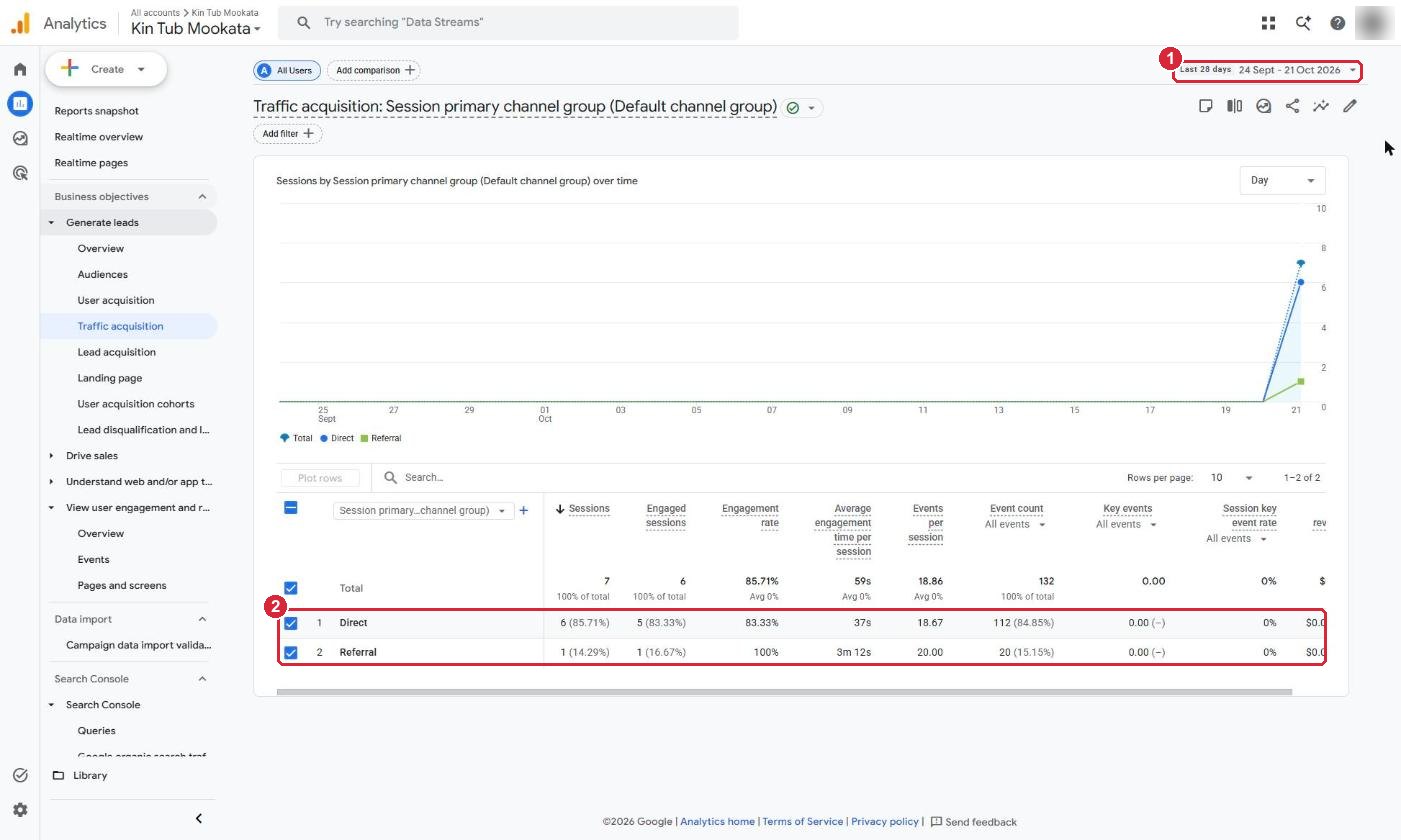
- On the left, click Generate leads, then Traffic acquisition.
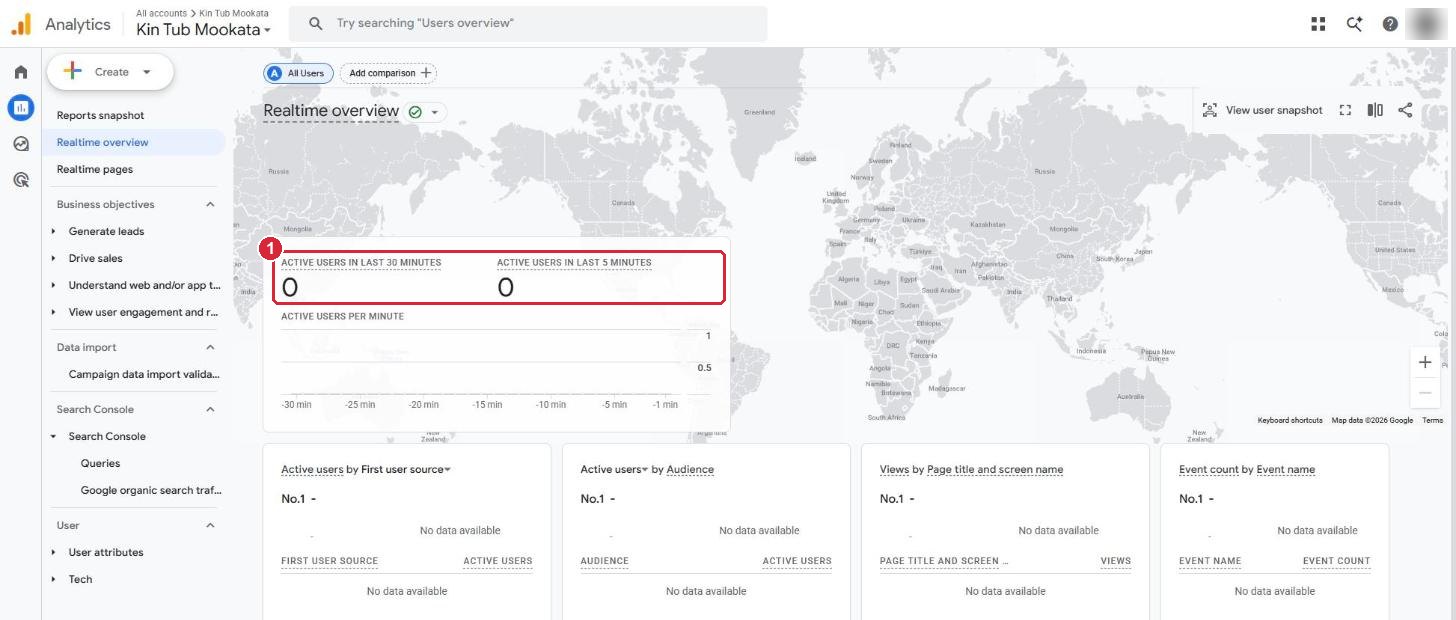
Is anyone on the site right now?
Click Realtime overview on the left. The number shows people on your website in the last 30 minutes.
10Google search (Search Console)
Search Console shows how your website appears in Google search. Look once a month.
- Go to search.google.com/search-console and log in with the same Google account.
- Choose kintubmookata.com.
- Click Performance on the left.
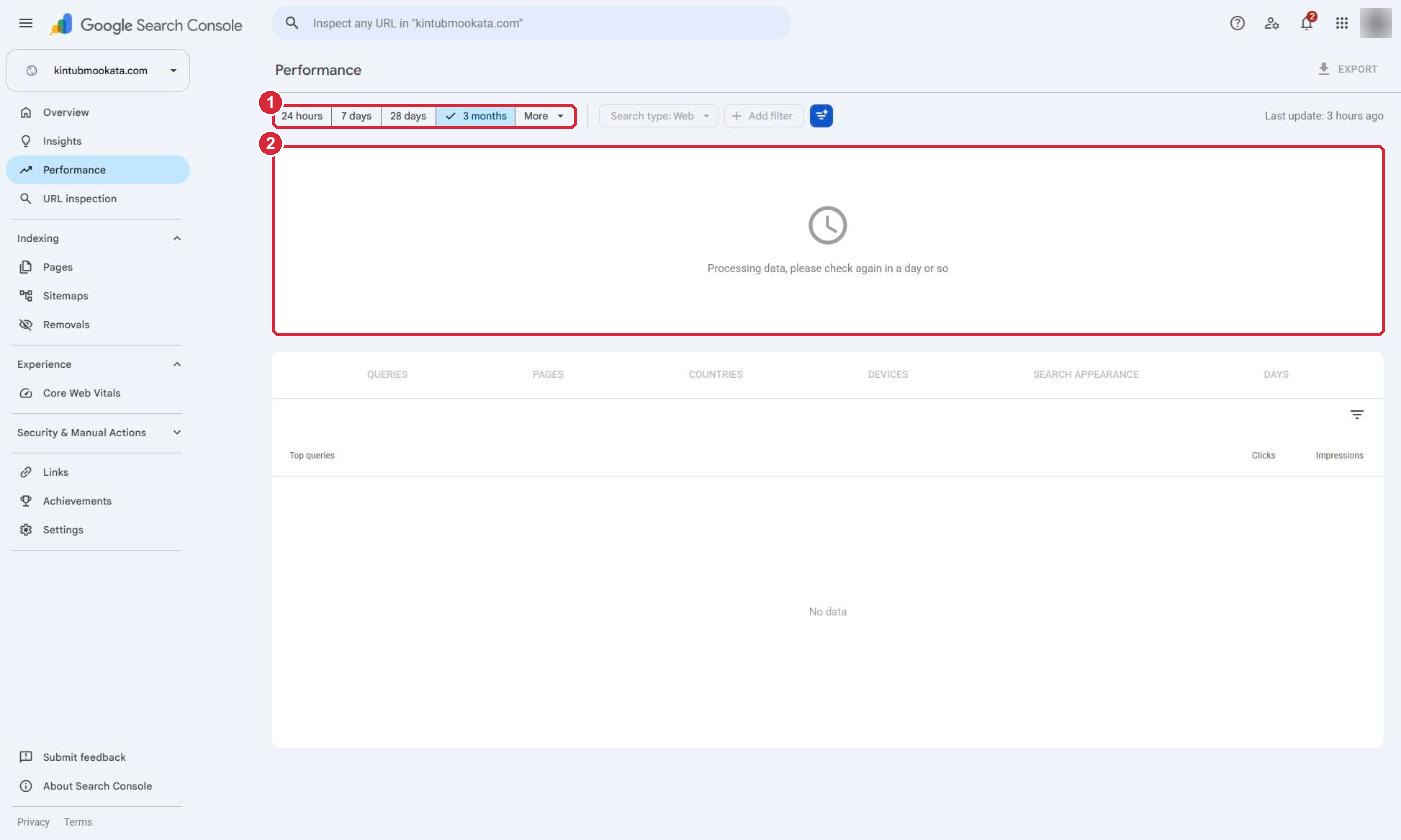
- 1Choose a period: 24 hours, 7 days, 28 days or 3 months.
- 2In the first days it says Processing data. That is normal for a new website, so check again in a few days. Then Clicks is the number of people who came to you from Google, and Queries are the words they searched.
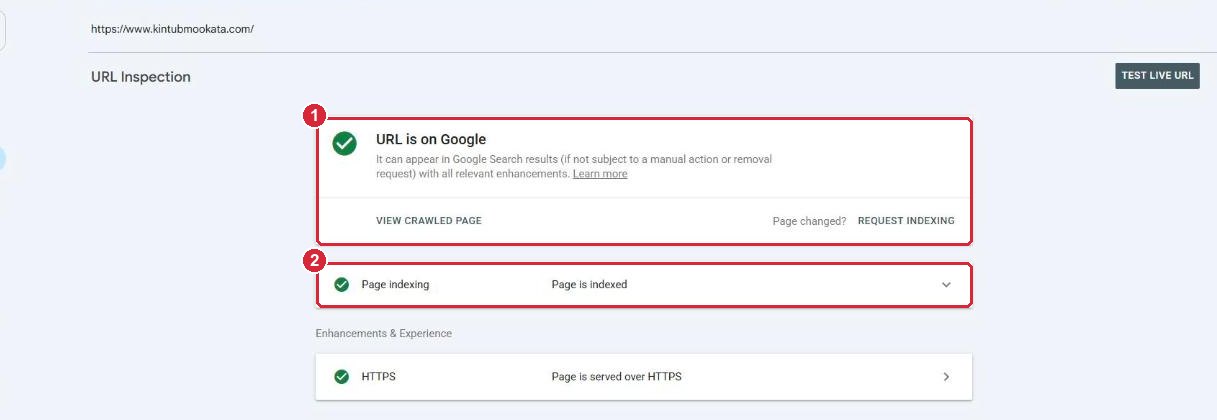
Is my page on Google?
Type your page address in the search bar at the top and press Enter. Your home page shows URL is on Google.
Does Google know all my pages?
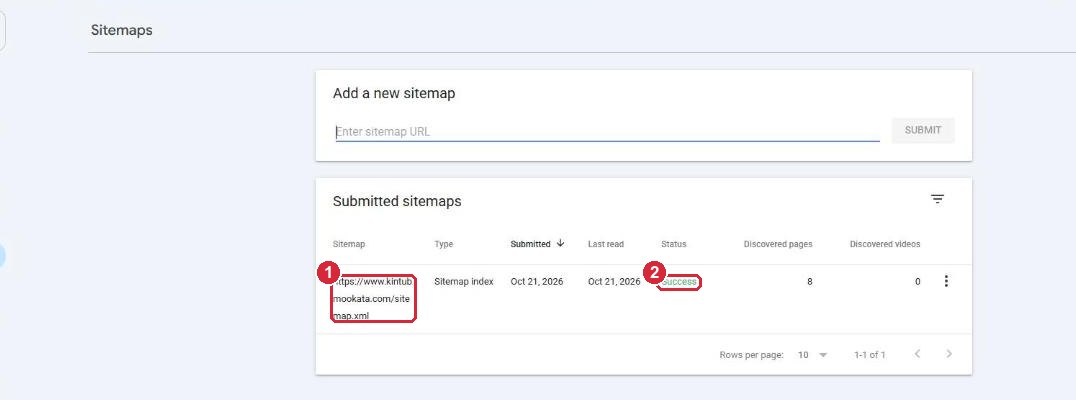
Click Sitemaps on the left. Success means Google has read your list of pages.
11Change the text on a page
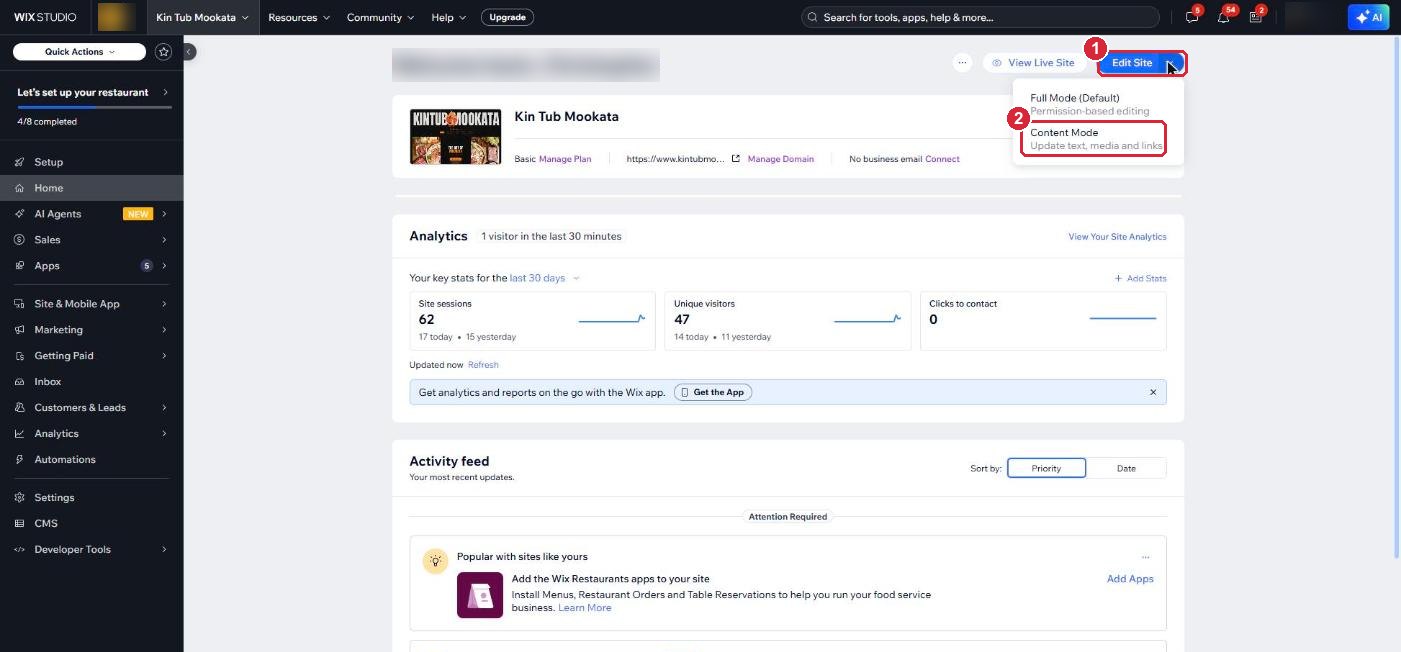
- On your dashboard home page, click the small arrow beside Edit Site.
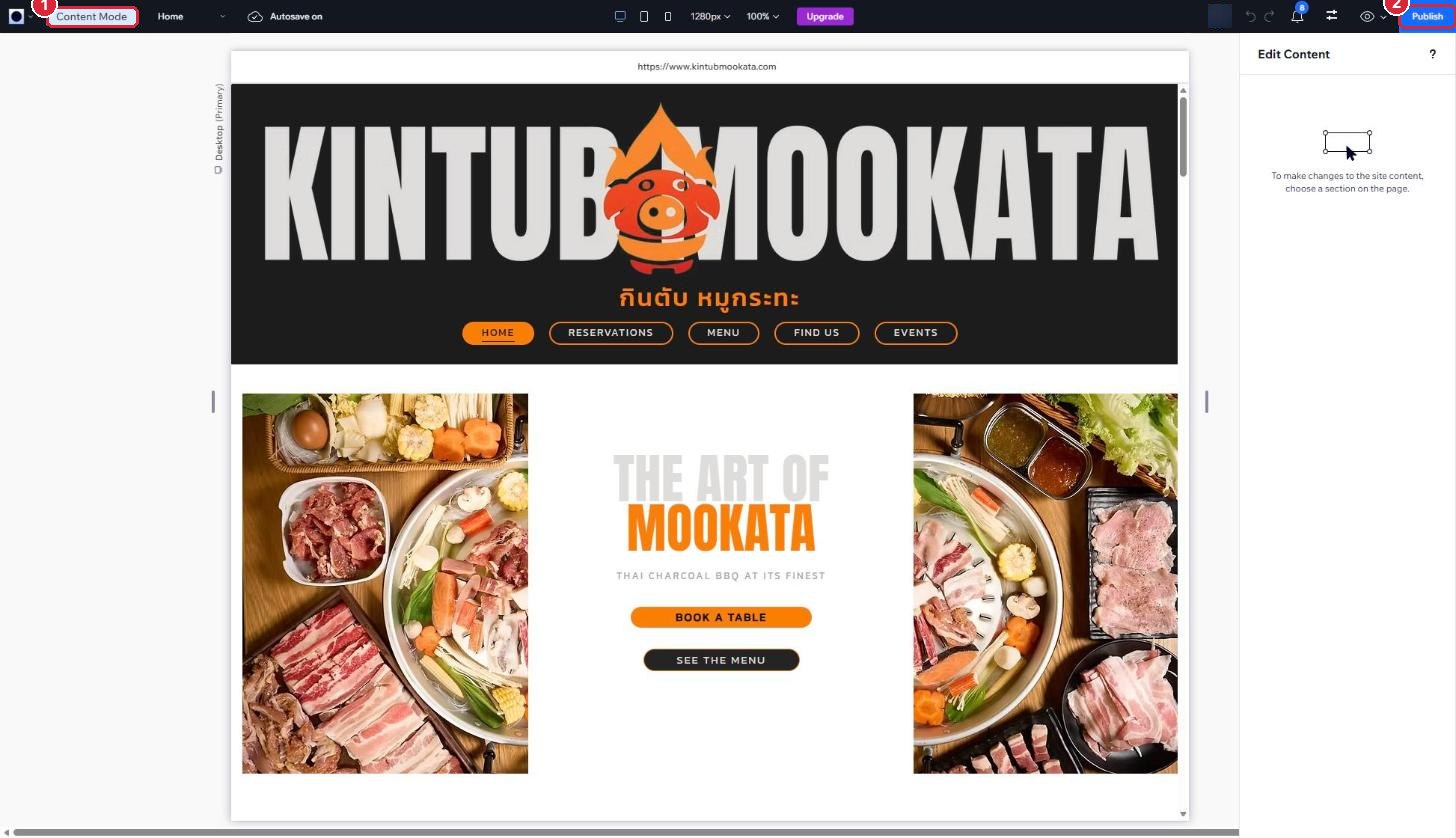
- Click Content Mode. Your website opens with a simple Edit Content panel on the right.
- Click once on the section you want to change. Its text appears in the panel on the right.
- Click inside the box, for example Title or Paragraph, and type your new words.
- Click Publish at the top right. Nothing goes live until you publish.
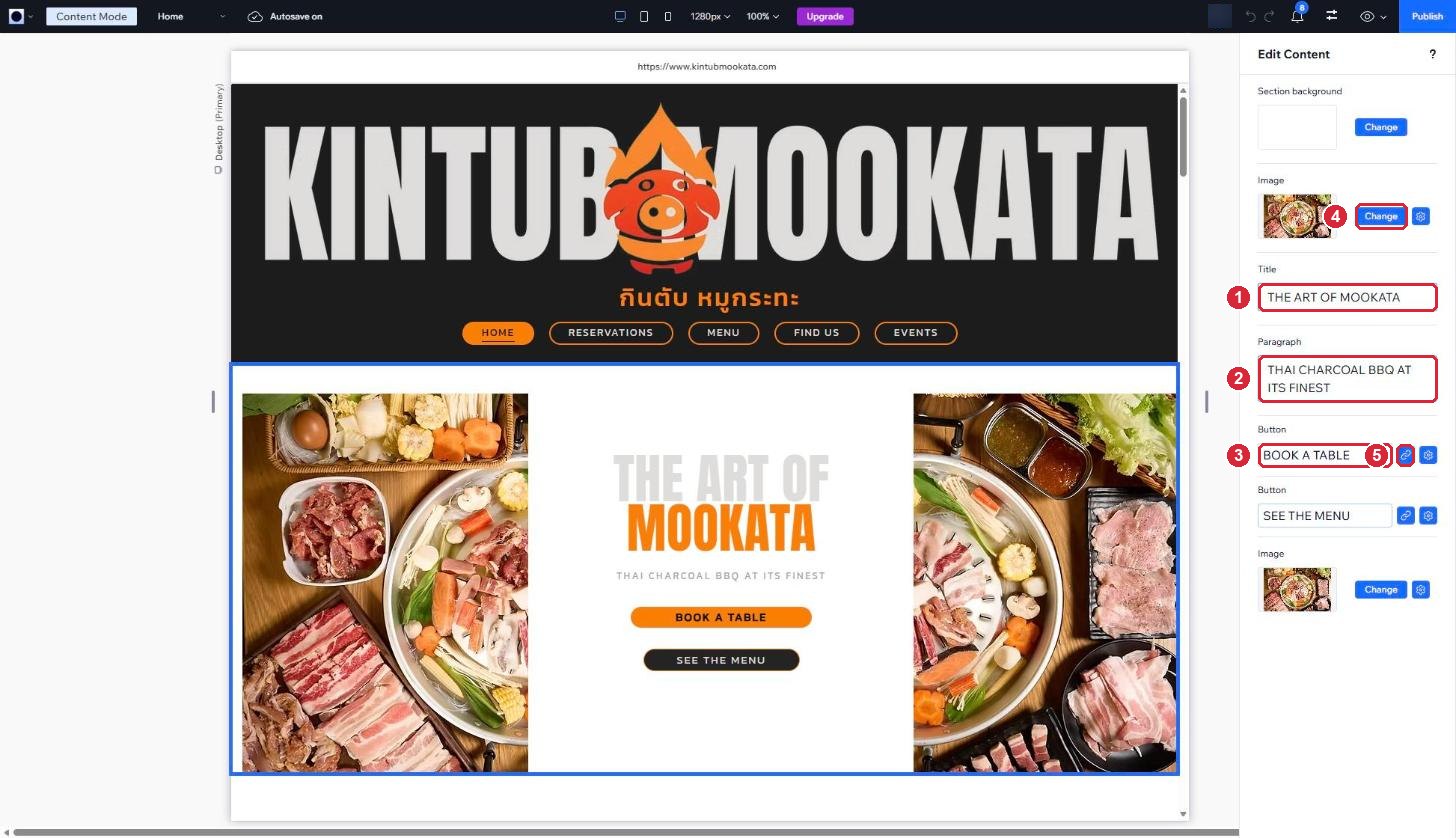
- 1Title: the big heading.
- 2Paragraph: the text below it.
- 3Button: the words on the button.
- 4Change: replace the picture (see section 12).
- 5Link icon: where the button goes when someone clicks it.
12Change a picture on a page
- Open Content Mode (steps in section 11) and click the section with the picture.
- In the panel on the right, find Image and click Change.
- Choose a photo from your computer, or one you uploaded before.
- Click Publish.
13Change opening hours, address or contact details
These appear in the footer, at the bottom of every page.
- Open Content Mode (steps in section 11).
- Scroll to the very bottom of the page and click the grey footer.
- Change the words in the box you need.
- Click Publish.
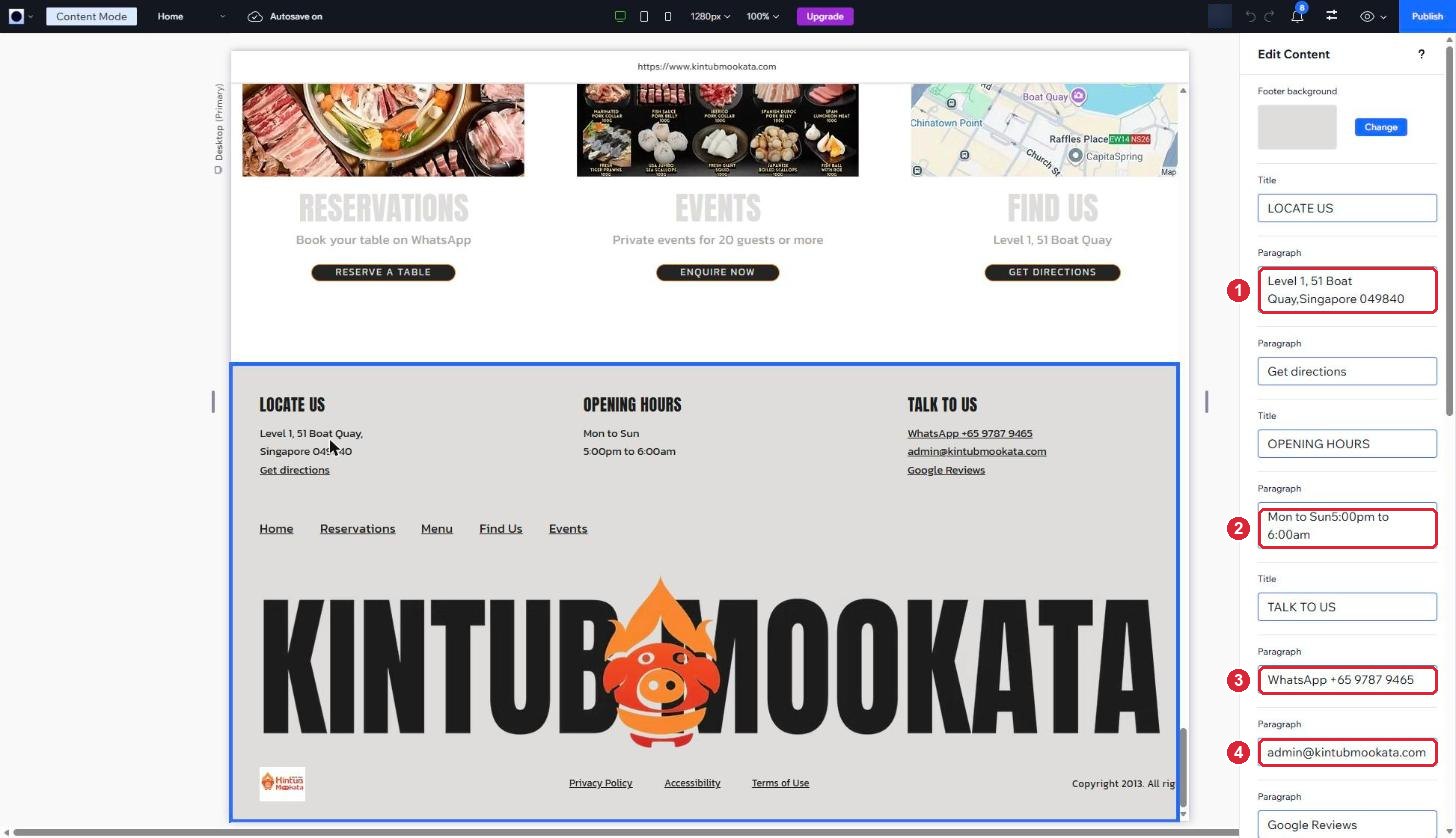
- 1Address.
- 2Opening hours.
- 3WhatsApp number shown to guests.
- 4Email shown to guests.
14What we look after for you
Send us a request for anything outside your menu, your page text and your photos, for example:
- Design, layout or how a page looks on phones
- New pages, menu items or buttons
- A new menu category
- Google search settings
- Your domain, or giving a colleague access to the dashboard
Tell us the page and what you want changed. A screenshot helps.
Send a website support request15Good habits
- After a change, click View Live Site and check it looks right, on your phone too.
- Type the category words exactly as in section 5.
- Do not delete or rename fields under Manage Fields, and do not rename the Menu list. The website reads them by name.
- Use square dish photos.
- Delete a dish only when you are sure.
- Keep your Wix and Google logins to yourself. Ask us to give a colleague their own access.